Elevating Player Interaction with Advanced Custom Chat
In the expansive world of Roblox development, effective player communication is paramount. While the platform provides a default chat system, savvy developers understand the power of customization. The TextChatService is Roblox's modern framework, offering unparalleled flexibility to tailor in-game chat to perfectly complement your experience. This guide delves into smart integrations and often-overlooked mechanics within TextChatService, empowering you to build pro-level communication systems that enhance immersion and player engagement.
Moving beyond basic aesthetic changes, mastering TextChatService involves understanding its underlying architecture and leveraging its full suite of features. From dynamic message formatting to custom command structures and bespoke channel management, the potential for innovation is vast. By implementing these advanced strategies, you can transform a standard chat box into a core interactive element of your game, fostering a more connected and vibrant community.
Hidden Systems and Lesser-Known Interactions
Dynamic Message Customization with Callbacks
One of the most powerful, yet sometimes underutilized, features of TextChatService is the ability to dynamically customize messages as they are received. The TextChannel.OnIncomingMessage callback allows developers to intercept messages before they are displayed and modify their properties. This goes beyond simple color changes; you can inject rich text, add prefixes based on player roles, or even alter the font and size of specific message types. For instance, you could make administrator announcements appear in a distinct, bold font with a unique color, or highlight messages containing specific keywords.
Leveraging System Messages for Immersive Storytelling
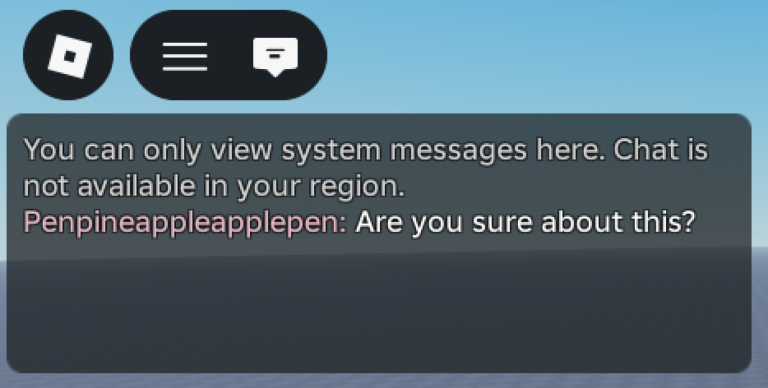
The RBXSystem channel is typically used for default system messages, but developers can harness its power for more immersive storytelling and in-game events. By calling DisplaySystemMessage() from the RBXGeneral channel, you can deliver custom, non-player-attributed messages to the local player. Imagine a game where an ancient artifact 'speaks' to the player through the chat, or a public address system broadcasts critical mission updates. This allows for a unique narrative layer that feels integrated directly into the communication flow, rather than a separate UI element.
Advanced Custom Commands with Aliases and Arguments
While many developers implement basic chat commands, the true depth of TextChatCommand lies in its support for multiple aliases and argument parsing. Each TextChatCommand instance can have a PrimaryAlias and a SecondaryAlias, allowing players to trigger the same command using different keywords (e.g., /spawn and /summon). Furthermore, the Triggered event provides the full message string, enabling you to parse additional arguments. This means a single command like /teleport PlayerName Location can be created, offering complex functionality through a simple chat input. This level of command sophistication can greatly enhance administrative tools, player abilities, or interactive game mechanics.
Why These Mechanics Matter
These advanced TextChatService mechanics are crucial for several reasons. Firstly, they allow for a highly personalized and branded chat experience that aligns with your game's unique aesthetic and lore. A visually distinct chat system can significantly contribute to the overall immersion and polish of your game. Secondly, dynamic message customization and system messages provide powerful tools for conveying information effectively. Important announcements won't get lost in the general chatter if they stand out visually, and narrative elements delivered via chat can deepen player engagement.
Thirdly, sophisticated custom commands empower both players and developers. Players gain intuitive ways to interact with game systems, while developers can create robust tools for moderation, event management, or even custom player abilities. This reduces the need for complex UI buttons for every action, streamlining the user experience. Finally, by leveraging TextChatService, you inherently benefit from Roblox's built-in chat filtering and moderation, ensuring your custom communication system remains compliant and safe for all players.
How to Implement and Utilize Them
Crafting Dynamic Message Styles
To implement dynamic message styling, you'll primarily interact with the TextChatService and its channels. First, ensure your game is using TextChatService by setting the ChatsVersion property. Then, within a LocalScript, you can connect to the TextChannel.OnIncomingMessage event. Inside this callback, you receive a TextChatMessage object. You can then create a TextChatMessageProperties instance and modify its Text property using rich text tags (e.g., <font color="rgb(255,0,0)"><b>ALERT:</b></font>) or adjust Font, TextColor3, and TextSize. Remember to return these modified properties to apply your custom styling.
Building Interactive System Prompts
For interactive system prompts, you'll typically use a Server Script. Obtain a reference to the RBXGeneral channel from TextChatService.TextChannels. To send a message to a specific player, use generalChannel:DisplaySystemMessage(PREFIX .. player.DisplayName). For more complex interactions, you might combine this with custom commands. For example, a system message could prompt a player to type /acceptquest, which then triggers a TextChatCommand you've defined.
Designing Robust Custom Commands
Creating custom commands involves adding a TextChatCommand instance directly under TextChatService in Roblox Studio. Set its PrimaryAlias (e.g., /super) and optionally a SecondaryAlias (e.g., /grow). The core logic resides in a Server Script, where you connect a function to the command's Triggered event. This function receives the TextSource (player) and the full message string. Inside, you can parse the message for arguments using string manipulation functions (e.g., string.split()) and then execute game logic based on the command and its parameters.
Common Mistakes to Avoid
When implementing custom chat features, several pitfalls can hinder your progress or compromise your game's integrity:
- Ignoring Roblox's Filtering: Attempting to bypass Roblox's built-in chat filtering for user-generated content is a serious violation of the Terms of Service and can lead to your game being moderated. Always ensure that any custom input fields or message handling systems utilize
TextService:FilterStringAsync()if they are not directly leveragingTextChatServicefor message content. - Overcomplicating UI: While customization is good, an overly complex or cluttered chat UI can detract from the player experience. Strive for a balance between unique aesthetics and user-friendliness. Ensure your custom chat window and input bar are intuitive and don't obscure important game elements.
- Lack of Clear Feedback for Commands: If players use a custom command incorrectly, they should receive clear, concise feedback. A simple 'Command not found' or 'Invalid arguments' message can prevent frustration. Integrate system messages to guide players on correct command usage.
- Performance Overhead: Excessive client-side scripting for chat effects or inefficient message processing in callbacks can lead to performance issues, especially in large servers. Optimize your scripts to ensure smooth chat functionality.
- Inconsistent Styling: If you're customizing various chat elements (window, input, bubbles, messages), ensure a consistent visual language. Disjointed styles can make your chat feel unpolished.
FAQ
Q: Can I completely replace the default Roblox chat UI with my own custom design?
A: Yes, you can. By setting the Enabled property of both ChatWindowConfiguration and ChatInputBarConfiguration within TextChatService to false, you can hide the default UI. You can then build your own chat interface using Roblox GUI elements like ScreenGui, TextBox, and ScrollingFrame, while still utilizing TextChatService for message handling, filtering, and moderation.
Q: How can I create different chat channels for specific groups, like a 'Team Chat' or 'Admin Chat'?
A: You can create custom TextChannel instances under TextChatService. Each channel can be configured with specific permissions and properties. You can then assign a TextChatCommand with a PrimaryAlias (e.g., /team or /admin) that, when triggered, directs messages to that specific channel. You can also color-code these channels for easy identification.
Q: Is it possible to add custom emojis or animated emotes to my chat system?
A: While Roblox's default chat supports standard emoji short codes (e.g., :smile:), implementing truly custom emojis or animated emotes requires more advanced development. Some community-made chat systems offer rich text support that can display images inline, or you might integrate a quick chat system that uses pre-made phrases with associated animations or bubble effects.
Conclusion
The TextChatService in Roblox Studio is a robust and flexible tool that, when understood deeply, allows developers to transcend the limitations of the default chat system. By exploring hidden mechanics like dynamic message callbacks, leveraging system messages for narrative depth, and crafting sophisticated custom commands, you can create a communication experience that is not only functional but also deeply integrated into your game's identity. Avoiding common mistakes and continuously refining your approach will ensure your custom chat system stands out, fostering a more interactive, engaging, and memorable experience for your players.
Active Custom Chat Codes (April 2026)
0 verified codes available for Custom Chat · 21 unverified
This article was researched and generated using AI tools, then reviewed by the RoUniverse editorial team.